Smart trainer not connecting? Find the failing step first
Troubleshoot a smart trainer that will not appear, connect, send power or change resistance, with a clear order for Bluetooth checks.
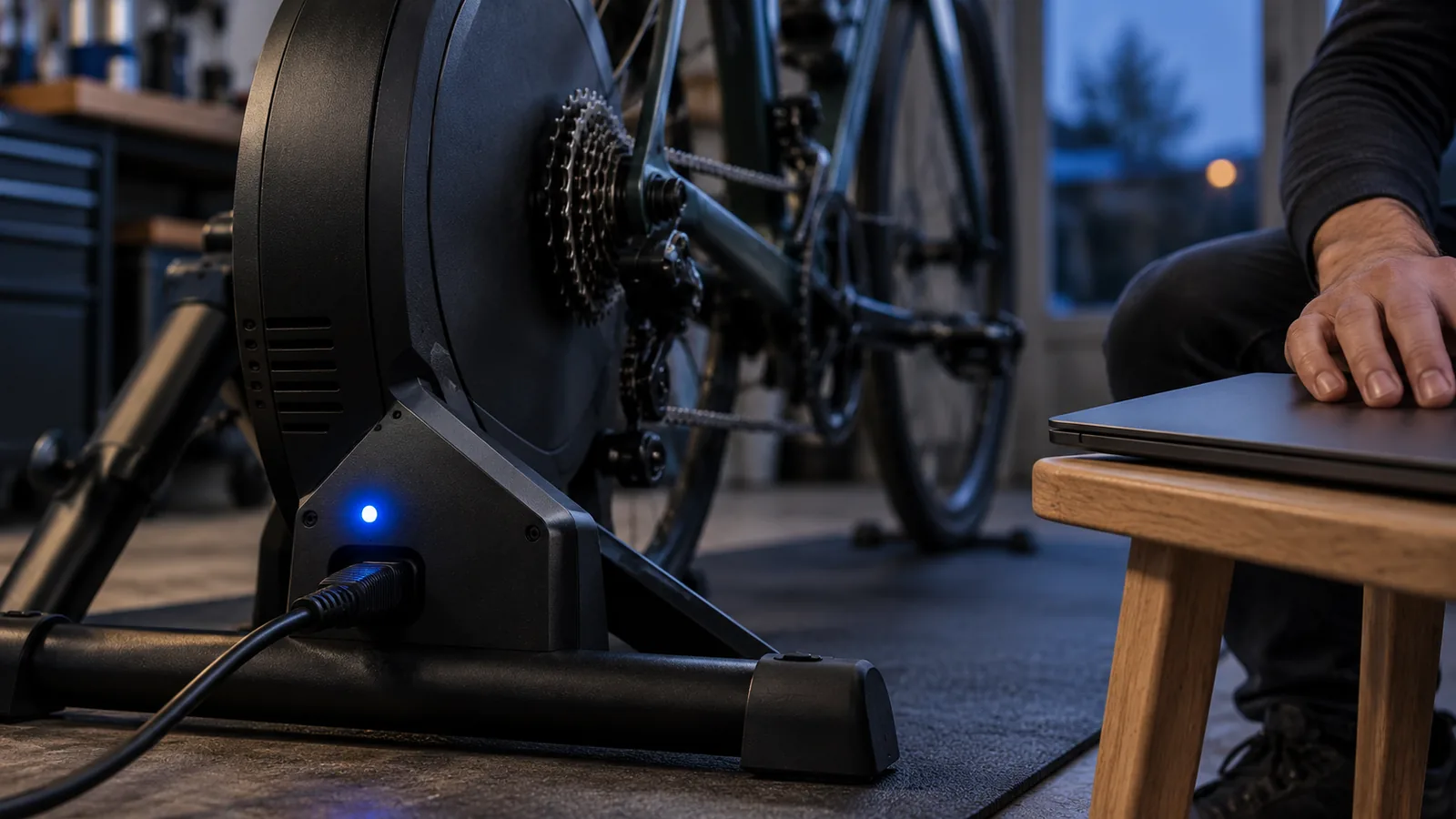
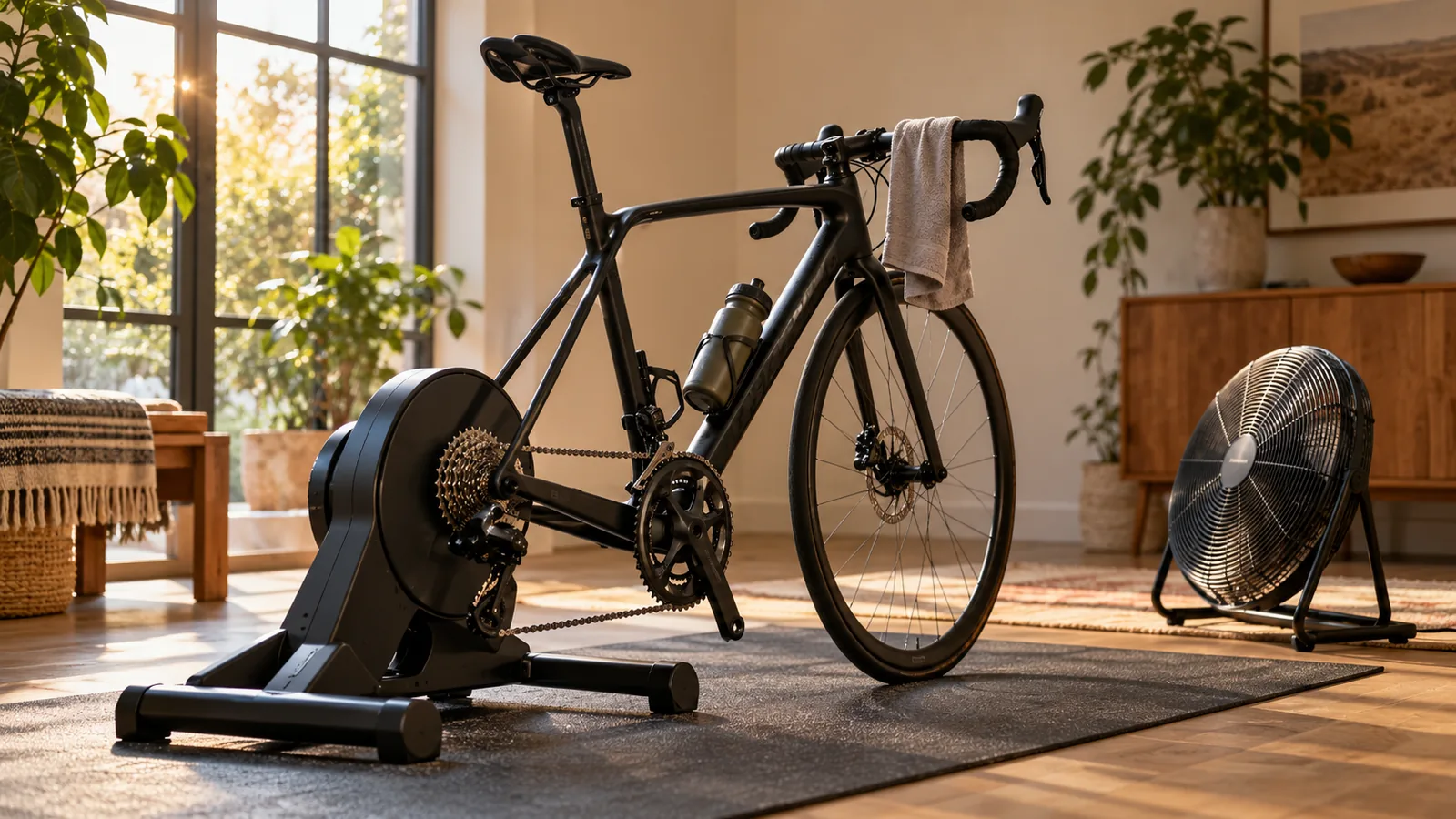
The bike is ready, the fan is on and the trainer has decided to become invisible. It is tempting to start turning every setting off and on. Resist that urge for a moment. “Not connecting” can describe several different failures, and each points to a different check.
First find the last thing that worked: did the trainer appear, did it connect, did watts arrive, and did resistance change? Work from that point. You will get a much clearer answer than you will from changing the browser, firmware and Bluetooth settings all at once.
Find your place in the connection chain
A successful step narrows the investigation. If live watts are arriving, you do not need to start by proving that Bluetooth exists. If the browser cannot offer Bluetooth at all, changing a cassette or workout will not help.
| The symptom | The question to answer |
|---|---|
| No Bluetooth option in the app | Does this device and browser support the app’s connection method? |
| The picker opens, but the trainer is missing | Is it powered, awake, nearby and available to this app? |
| The trainer appears, but connection fails | Are permissions, firmware or a competing connection involved? |
| Connected, but no live watts | Is the app receiving the power service it expects? |
| Watts work, but resistance does not | Does this setup support and grant trainer control? |
| Everything works, then drops | What changed around the time of the dropout? |
Check power, wake state and other apps
Follow the trainer’s instructions to confirm it is powered and awake. Look at its status lights and wake it as directed. Move the riding device close enough for a straightforward test. Then close other cycling apps on the computer, phone or tablet, including the manufacturer’s app you may have used for calibration.
Some devices support multiple connections, but that does not mean every combination can control resistance at once. Establish one working connection before adding anything else. FulGaz’s support guidance specifically identifies another app holding a Bluetooth connection as a common reason a device cannot be found.
For a browser app, check the browser before the trainer
A Bluetooth capable computer does not guarantee that every browser can pair a trainer. Web Bluetooth depends on browser and platform support, a secure page and your permission. The site opens its picker after an action such as pressing a pairing button; it cannot silently discover and control nearby devices.
Everycol’s supported trainer path is Chrome or Edge on a supported Bluetooth desktop. Safari, Firefox and iOS browsers are not supported for pairing. Open the normal secure website, use the in app pairing flow and check operating system Bluetooth permissions if the browser reports that access is unavailable. On a Mac, this does not require turning on an experimental browser flag.
A familiar brand name is not a compatibility check
Apps communicate with specific trainer services and protocols. Bluetooth branding alone does not say whether an app can receive power, request ERG targets or simulate a slope. Firmware can change the available services, but missing support is not automatically proof that the firmware is outdated.
Everycol implements FTMS and supported Tacx FE-C over Bluetooth. Garmin’s protocol documentation, for example, distinguishes Tacx models that expose different wireless interfaces. Everycol’s KICKR and NEO 2T paths are implemented against protocols and still need broader hardware validation. ANT+ USB, power meter only peripherals and older proprietary trainer protocols are not interchangeable supported paths.
If watts work, investigate control separately
Receiving power proves that data is arriving. It does not prove that your app has permission to change the load. Check whether the trainer is selected for resistance control, whether the chosen mode is supported and whether another app is still giving it commands.
Also check the mode you expected. In an ERG workout, the load follows a power target rather than every hill on the screen. In slope simulation, it follows the route within the app and trainer’s limits. A flat feeling road during an ERG interval may be normal behavior rather than a connection failure.
For dropouts, keep a useful record
Note when the problem occurs and what disappears. Does power freeze, does the entire device disconnect, or does the screen stop responding while power still changes? Does it happen after the laptop sleeps or when another app opens? Those observations help separate a radio connection problem from an app or display problem.
Test with the device closer, close competing apps and follow the manufacturer’s interference and power management guidance. Change one variable between attempts. Do not repeatedly launch hard intervals to see whether a fix worked; a short easy test is enough to check that readings stay fresh and controls respond.
Give support the details that make the next step obvious
Leave passwords, account tokens and private ride files out of an ordinary support message. If the bike is still under resistance after a connection loss, follow the trainer’s stop and shutdown instructions; a lost radio link is not proof that the previous resistance command has been released.
- Trainer model and firmware version, using the manufacturer’s app to check.
- Computer or device model, operating system, app and browser version.
- The last successful step: discovery, connection, live power or control.
- The exact visible error and whether other cycling apps were closed.
- A simple description of what changed before the problem began.
Your questions, answered
Why does the trainer work in its own app but not another app?
The apps may use different protocols or control features. Close the manufacturer’s app, then check the second app’s support for your exact trainer, firmware and connection method.
Does a Bluetooth connection mean ERG mode should work?
No. Power reception and resistance control are separate capabilities. The trainer, app and selected connection must support the requested control mode.
Should I reset everything first?
Start with the smallest relevant checks. Power, competing apps, browser support and permissions often narrow the issue without erasing settings or changing several things at once.
Sources & useful reading
For compatibility and changing product details, go straight to the source.